From Page to Pixel: Finding the Best DPI for Scanning Yearbooks
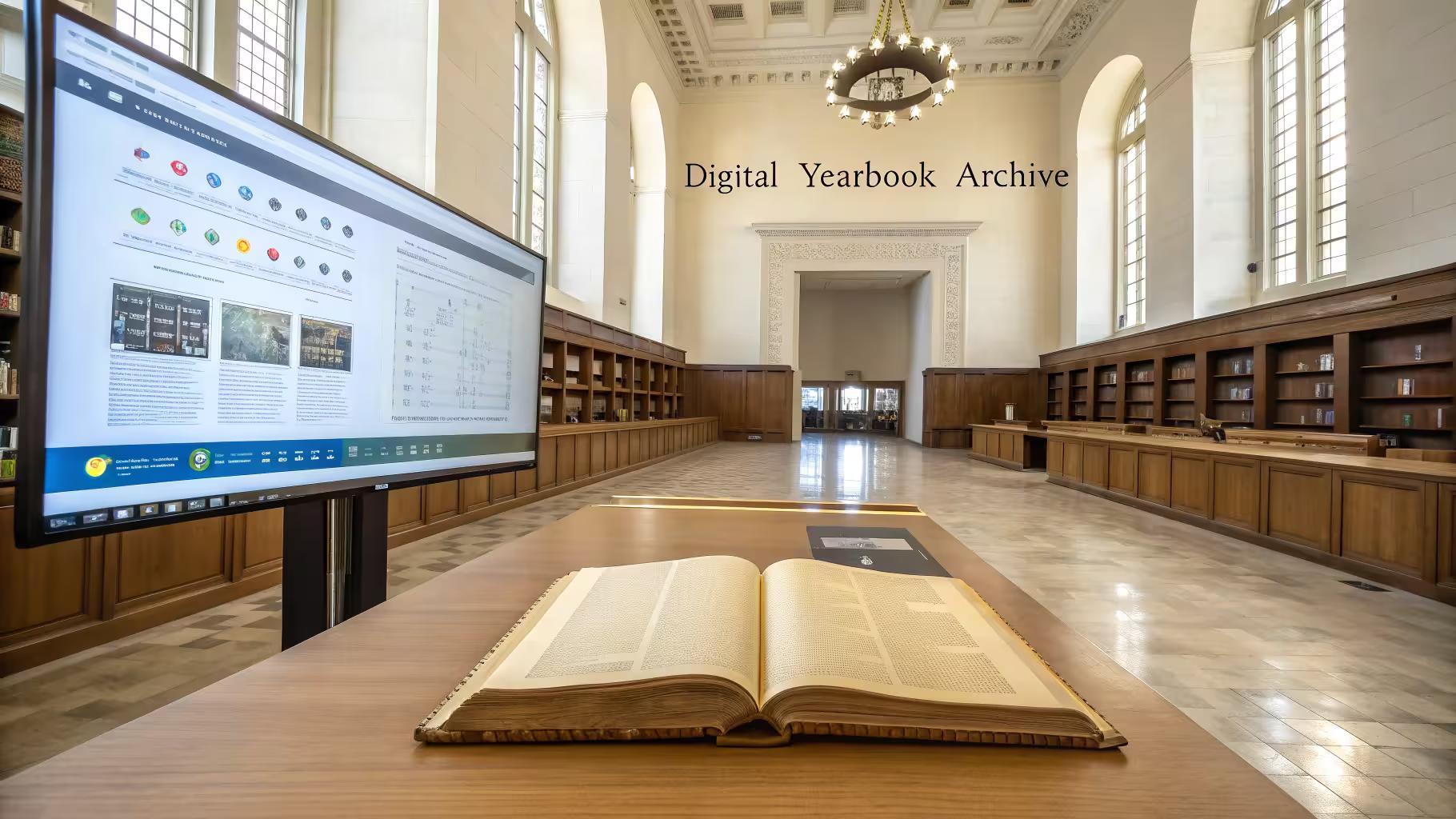
When digitizing cherished memories, finding the best DPI for scanning old yearbooks is more than just a technical detail—it is the secret to non-destructive, high-quality preservation of history. If you are looking for a quick baseline: 300 DPI is ideal for speed and manageable storage, 600 DPI offers much sharper details, and 1200 DPI is reserved for professional archival storage.
In our digital age, preserving history through fully searchable digital yearbook collections is highly accessible. However, scanning a full yearbook presents unique challenges regarding page size and maintaining crisp image quality for the digital yearbook collection, particularly when using OCR technology. Understanding DPI (dots per inch) ensures these scanned pages keep their clarity for generations. Effective digital preservation allows alumni, staff, and students to easily revisit and share these moments. Figuring out the best resolution to scan photos for yearbook digitization ensures you capture all essential details without creating bloated, unmanageable files.
Understanding DPI and Its Importance
DPI stands for dots per inch, a critical measurement you will frequently encounter when learning how to scan a yearbook. It simply measures how many individual pixels or dots of ink are packed into a single inch of a digital file or printed image, crucial for high-quality scans. The rule of thumb is straightforward: the higher the DPI, the sharper and more detailed your resulting image will be, which is crucial for the digitization process.
DPI is absolutely crucial when digitizing old yearbooks because it dictates how much detail your scanner captures. Scanning at a low DPI results in blurry, frustrating images. Higher DPI settings guarantee clearer, crisper images, which is vital for preserving the fine text and small portraits commonly found in older publications and yearbook collections.
Choosing the Right Resolution for Your Project
Balancing quality with file size is the main challenge of any yearbook digitization project. While a higher DPI yields better quality, it also generates massive files that can be difficult to store and share, complicating the accessibility of your digital yearbook.
- 300 DPI is essential for ensuring your scanned images are fully searchable in the digitization process. This is the most frequently recommended setting for standard projects, especially when creating a digital yearbook from physical yearbooks. It provides an excellent balance between file size and image clarity. It scans quickly and efficiently, making it the best option for everyday viewing and sharing on modern screens.
- 600 DPI: If your project requires more detail, 600 DPI is a fantastic choice for creating high-resolution scans of your yearbook collection. Scanning will take a bit longer, but it captures finer details perfectly, ensuring that your digital yearbook is of the highest resolution and fully searchable. This is highly recommended for preserving intricate historical text and smaller group photos in school yearbooks that you might want to zoom in on later.
- 1200 DPI and Beyond: For strict archival purposes, 1200 DPI delivers maximum detail for your digital yearbook. It creates very large files but captures every single nuance of the original page, guaranteeing the ultimate preservation of your historical documents.
Step-by-Step Guide to Scanning Yearbook Photos
Digitizing an entire yearbook might feel overwhelming, but following a straightforward process makes it highly manageable.
Preparing Your Scanner
Start by adjusting your scanner settings to your desired DPI for high-resolution images. For most standard jobs, 300 DPI is perfect, but step up to 600 DPI if you need to capture finer nuances in your school yearbooks. Next, decide between color and black-and-white modes. Scanning in full color usually provides much more control over the final image quality during the editing phase, even if the original photograph is printed in black and white.
The Scanning Process for creating high-quality digital copies.
Lay the yearbook completely flat on the scanner glass and close the lid gently to prevent damaging the spine. Ensure the page is perfectly straight to avoid perspective distortion, which is crucial for maintaining the quality of your yearbook content. When choosing a file format, remember that TIFF files are ideal for archival storage because they offer lossless quality, though they consume significant storage space. Conversely, JPEG is excellent for everyday sharing, providing a solid compromise between file size and visual quality in a yearbook digitization project. Always handle old, fragile pages of physical yearbooks with care; using a clear piece of plastic to lightly hold pages flat without applying heavy pressure is a great protective technique.
Post-Processing Scanned Images is essential for ensuring non-destructive edits that maintain the integrity of your yearbook content.
Once your scanning is complete, photo editing software like Adobe Photoshop or GIMP can greatly enhance your images, ensuring high-quality digital copies. Utilize noise reduction filters to clean up the graininess commonly seen in older photos during the book scanning process. Additionally, applying an unsharp mask can restore clarity and crispness to fading text and images.
Frequently Asked Questions
Is it better to scan old photos at 300 or 600 DPI?
Choosing between 300 and 600 DPI for your digital yearbook comes down to your specific needs for storage, speed, and quality in the book scanning process. 300 DPI is highly efficient, creating smaller files that are easy to share while maintaining good enough quality for screen viewing and standard printing. 600 DPI captures significantly more detail, which is necessary if you plan to enlarge the photos, though it requires more hard drive space and slower scan times.
For scanning a full yearbook cover-to-cover, 300 DPI is generally the sweet spot for creating high-resolution digital copies. This resolution captures both text and images clearly while keeping the digital files true to their original size. Saving these everyday scans as JPEGs is a popular choice for easy sharing, but remember to save a master copy as a lossless TIFF file if you are building a permanent digital archive for your yearbook content.
Is 1200 DPI too much for scanning a digital yearbook?
While 1200 DPI is generally excessive for standard, everyday scanning, it serves a specific purpose for archival quality, especially for preserving donor contributions. It captures minute details, making it perfect for tiny photos or intricate artwork often found in yearbook collections. However, the files are enormous and demand significant processing power to edit, especially when creating digital copies of yearbook content. Unless you are preserving an incredibly rare, fragile yearbook or need to drastically enlarge specific images for a wall display, sticking to 300 or 600 DPI is usually much more practical for high school yearbooks.
Conclusion
Digitizing yearbooks is about far more than just converting paper to pixels—it is about securing history for future generations. Determining the best dpi for scanning old yearbooks is a pivotal step that directly impacts the usability and quality of your digital archives. For the vast majority of projects, 300 DPI offers a reliable, efficient balance. For capturing finer details in your digital yearbook, 600 DPI is excellent, while 1200 DPI should be reserved for strict archival preservation of high-quality images.
At Touchstone Digital Solutions, we champion the importance of digital preservation for yearbook content to enhance accessibility for future generations. If you are looking for the best yearbook scanning service, our expertise ensures that your community's legacy is beautifully celebrated and securely archived as high-resolution digital copies. We provide intuitive interactive platforms that make accessing and sharing these precious memories from your yearbook collection completely effortless, especially through digitization services. By utilizing optimal scanning techniques, you guarantee your history remains vibrant and accessible. Partner with Touchstone Digital Solutions to protect your past and celebrate your community's unique journey.